
USB tethering gives CastSound a direct link between phone and computer. It is the fallback to try when Wi-Fi discovery fails, when the network filters device traffic, or when you want the steadiest possible connection.
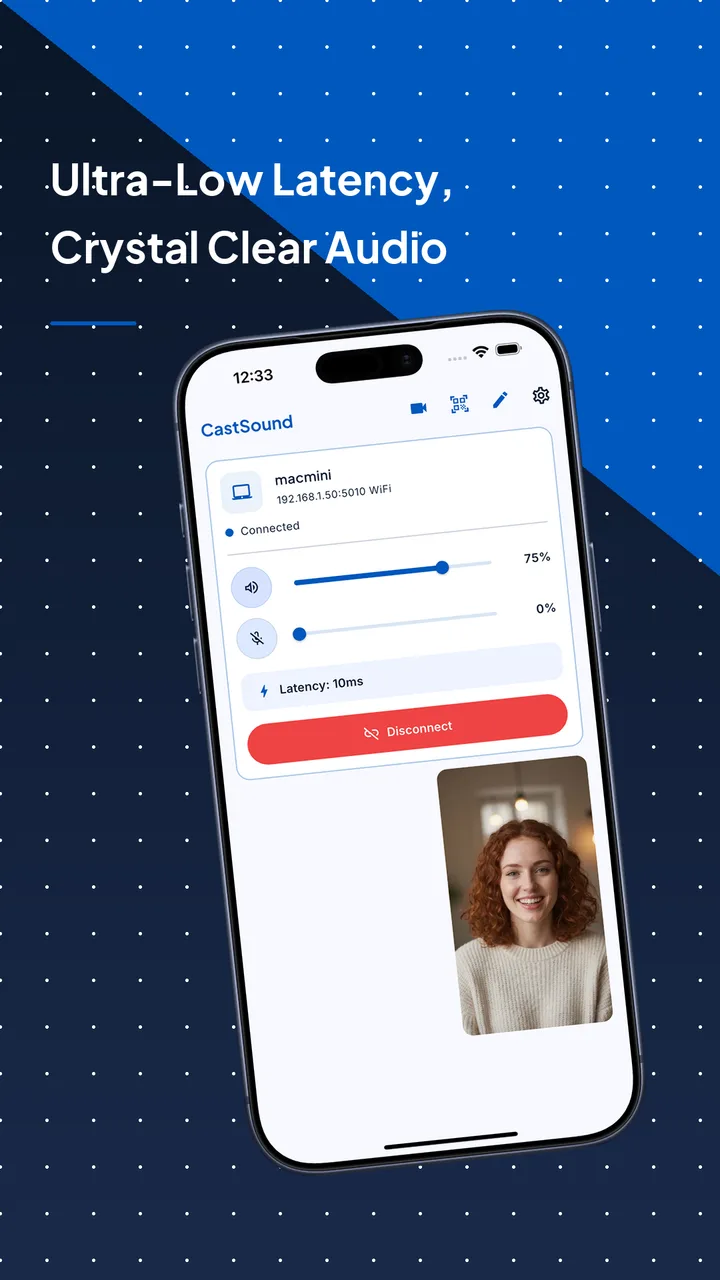


Prepare
Put your devices on the same network
Connect the phone to the computer with a USB cable. On Android, enable USB tethering in the hotspot settings; on iPhone, enable Personal Hotspot and trust the computer. The phone and computer now share a direct local link that CastSound can use.
Connect
Choose the device you recognize
- Enable USB tethering or Personal Hotspot on the phone.
- Open CastSound on both devices and wait for them to see each other on the tethered link.
- Select the other device and approve the connection as usual.
If the device is not listed, scan the code shown on the computer or enter the local address displayed by CastSound.
Use CastSound
Choose CastSound in the app you are using
Everything else works exactly like a Wi-Fi connection: pick CastSound as the sound output, microphone input, or camera in the apps you use. Keep the cable connected for the whole session.
If you get stuck
Check these three things
- The USB cable supports data, not just charging.
- USB tethering or Personal Hotspot is enabled on the phone.
- The phone trusts the computer (check the prompt on iPhone).
Still not connected? Try the USB tethering guide or contact support.