
CastSound normally finds your devices by itself. This guide covers what to check when the phone or computer does not appear in the device list, and the manual options that always work.
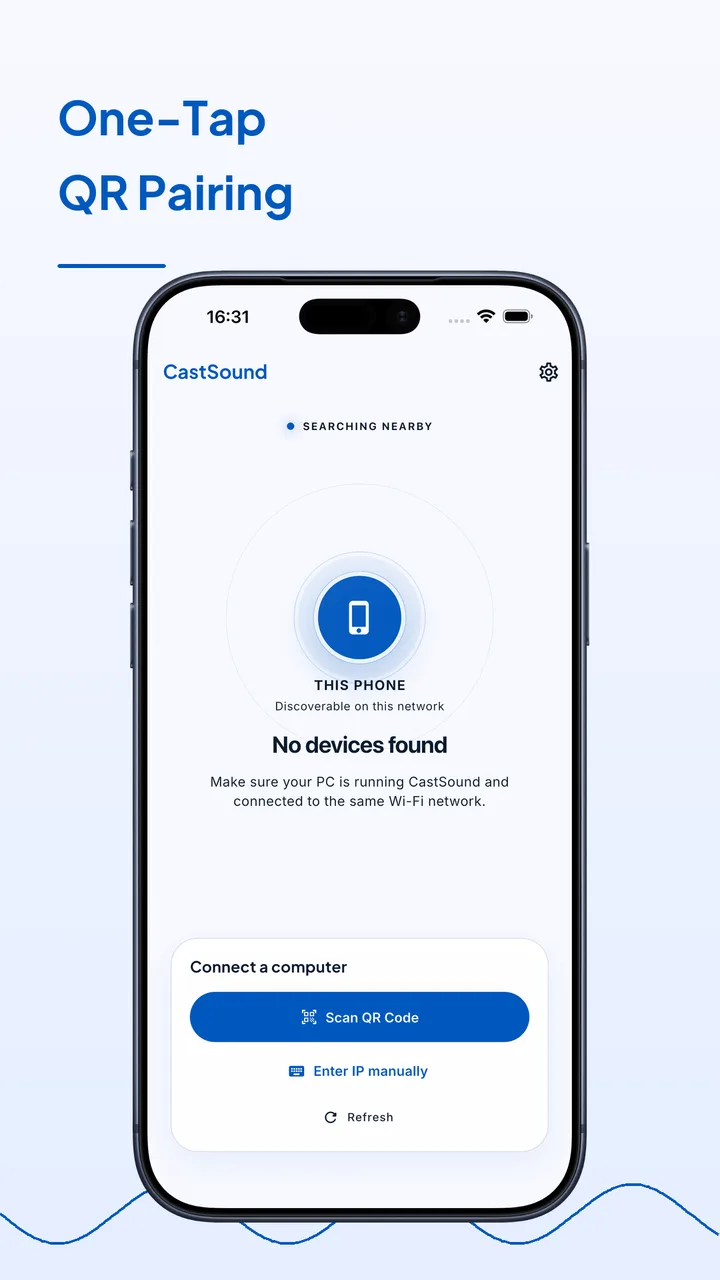


Prepare
Put your devices on the same network
Open CastSound on both devices. Put both on the same Wi-Fi network, avoiding guest or client-isolated networks that block devices from seeing each other. Check that airplane mode is off and that both apps are on their connection screens.
Connect
Choose the device you recognize
- Wait a few seconds on the connection screen for discovery to finish.
- If the device is not listed, scan the code shown on the computer with the phone camera or the CastSound scanner.
- As a last resort, type the local address shown by CastSound into the other device.
If the device is not listed, scan the code shown on the computer or enter the local address displayed by CastSound.
Use CastSound
Choose CastSound in the app you are using
Once a manual pairing succeeds, keep both apps updated so future connections can use automatic discovery. Removing the devices from your trusted list and pairing again also refreshes a stale pairing record.
If you get stuck
Check these three things
- Both devices are on the same non-guest network.
- No VPN or private-relay feature is hiding the local address.
- A firewall is not blocking CastSound on the computer.
Still not connected? Try the USB tethering guide or contact support.