
Follow these steps to set up CastSound on a Linux computer with an iPhone or iPad. The iOS app brings the Apple microphone and camera to a Linux desk over a direct Wi-Fi connection.
Install first
Download CastSound on both devices
Install the phone app and desktop app before continuing.
iPhone & iPad

Linux
DownloadPrepare
Put your devices on the same network
Open CastSound on the Linux computer and on the iPhone. Connect both to the same Wi-Fi network. On the iPhone, allow microphone, camera, and local-network access when iOS asks. On Linux, allow local-network access when the desktop app starts.
Connect
Choose the device you recognize
- On either device, select the name of the other device.
- Check that the names shown on both screens match.
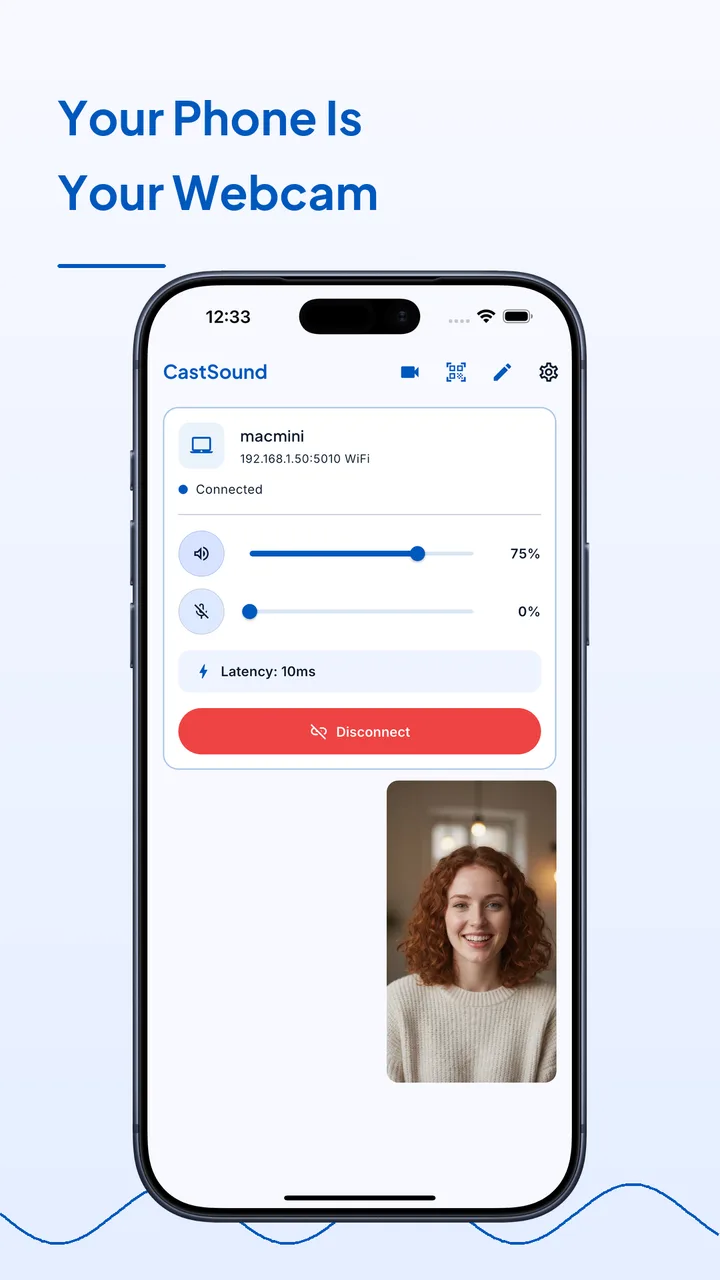
- Approve the request on the receiving device and wait for the connected status.
If the device is not listed, scan the code shown on the computer or enter the local address displayed by CastSound.
Use CastSound
Choose CastSound in the app you are using
In your Linux sound settings, choose CastSound as the output to hear computer audio on the iPhone. For calls, choose CastSound as the microphone input. To appear on video, start the camera in the iPhone app and choose the CastSound camera in your meeting app.
If you get stuck
Check these three things
- Both devices are on the same non-guest Wi-Fi network.
- The iPhone allowed microphone, camera, and local-network access in iOS settings.
- Your firewall allows CastSound to receive local connections (open the port shown by the app).
Still not connected? Try the USB tethering guide or contact support.